





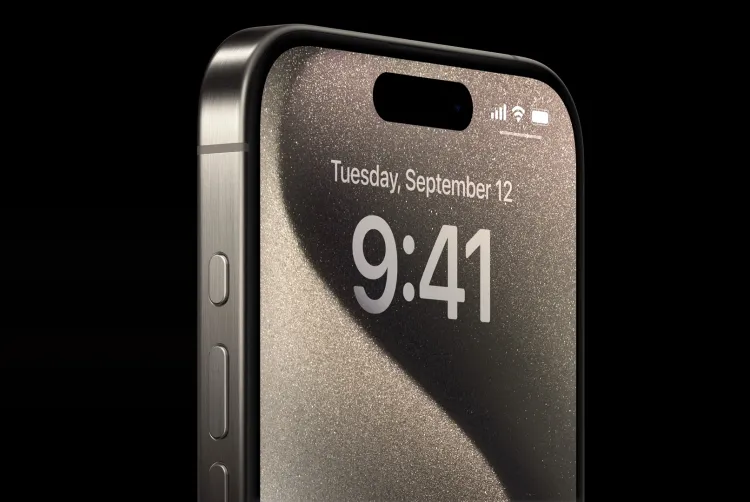

Unlock the Hidden Power of Your iPhone’s Volume Buttons: Tips, Tricks, and Features You Never Knew Existed
If you’ve ever used an iPhone, you’re probably familiar with the standard functions of the volume buttons: adjusting sound, toggling mute, or controlling media playback. However, what if we told you that the volume buttons on your iPhone have several hidden features that could completely change how you interact with your device? From capturing photos to controlling accessibility settings, the volume buttons are far more powerful than you think. In this article, we’ll explore the best-kept secrets of your iPhone’s volume buttons and how you can make the most of them.
1. Take Photos with Your Volume Buttons
Did you know that you can use the volume buttons to take photos? This might be a game-changer for those who love capturing the perfect shot without having to tap the on-screen shutter button.
On most iPhones, you can simply open the camera app and press either of the volume buttons to snap a picture. Whether you’re using the front-facing camera for selfies or the rear camera for group photos, using the volume buttons helps eliminate the risk of shaking the phone when pressing the on-screen button.
2. Use the Volume Buttons to Record Video
When recording videos, you don’t always want to be tapping the screen or using the on-screen controls. By simply pressing the volume buttons, you can start or stop video recording. This makes it easier to capture spontaneous moments without fumbling with your device.
Whether you’re filming a quick video on the go or vlogging your latest adventures, using the volume button to control your video recording offers a more seamless and stable recording experience.
3. Control Music & Media Playback
While playing music or watching videos, your iPhone’s volume buttons allow for more than just volume control. You can also pause, play, skip forward, or skip backward using the buttons. This is especially helpful when you’re listening to music or podcasts in the background and don’t want to unlock your phone or search for the media controls on the screen.
- Play/Pause: Press either volume button to pause or resume playback.
- Skip Forward/Backward: Hold the volume buttons for a few seconds to skip to the next song or replay the previous one.
4. Quick Access to Siri
Siri, Apple’s voice assistant, can be activated in several ways, but one of the most convenient is through the volume buttons. By pressing and holding the volume up or down button, you can summon Siri instantly, even if your phone is locked or you’re using an app.
This feature is incredibly useful when you need to ask a question, set a reminder, or control your device hands-free without searching for the physical Home button (or the newer gesture-based controls on newer iPhones).
5. Use the Volume Buttons to Take Screenshots
Taking screenshots is another often-overlooked function that can be easily executed with the volume buttons. On iPhones without a Home button, press the Volume Up button and the Side button simultaneously to capture the screen. For models with a Home button, it’s the Volume Down button and the Home button.
This is one of the simplest ways to capture what’s on your screen—whether it’s a text conversation, a web page, or an image—without needing to rely on on-screen options.
6. Adjusting the Ringer and Alerts
Your iPhone’s volume buttons not only control media volume but can also be used to adjust the ringer volume. This is particularly useful when you don’t want to open the Settings app to change the ringtone volume. You can easily toggle between silent and loud modes by simply pressing the volume up or down buttons.
If you prefer to keep your phone on silent for notifications, just press the volume down button until it vibrates, indicating that it’s on silent mode. It’s an easy and efficient way to stay in control of your notifications.
7. Accessibility Shortcuts and Assistive Touch
For those who use iPhone’s accessibility features, the volume buttons can be programmed to activate specific shortcuts or trigger assistive touch functionality. For example, if you have difficulty reaching certain areas of the screen or using gestures, you can set up your volume buttons to trigger on-screen controls, simplifying the process.
To enable this, navigate to Settings > Accessibility > Touch > AssistiveTouch, and set up custom shortcuts that work with the volume buttons.
8. Use the Volume Buttons as a Zoom Control
For users who need to magnify their iPhone screen, the volume buttons can also function as a zoom control. By enabling the Zoom feature in Settings > Accessibility > Zoom, you can double-tap the screen with three fingers and then use the volume buttons to zoom in and out smoothly.
This feature is ideal for users with visual impairments or anyone who wants to get a closer look at smaller text or images on their phone.
9. Take Advantage of the Camera’s Burst Mode
If you’re someone who enjoys taking action shots or fast-paced photos, the iPhone’s volume buttons can be a game-changer when using burst mode. To use burst mode, simply press and hold the volume up or down button while in the camera app. This will allow you to capture a rapid series of photos in quick succession.
Burst mode is particularly useful for capturing movement or taking multiple shots to ensure you get the perfect photo. It’s one of those small but powerful iPhone features that often goes unnoticed.
10. Lock the Orientation of the Screen
When you’re using your iPhone in portrait or landscape mode, the screen’s orientation may change depending on how you hold the device. If you prefer a fixed orientation, you can lock it using the volume buttons.
To lock screen orientation, swipe down from the top-right corner of your screen (on iPhones with Face ID) or swipe up (on iPhones with a Home button) to access the Control Center, then tap the orientation lock icon.
Conclusion: Maximize the Power of Your iPhone’s Volume Buttons
While your iPhone’s volume buttons may seem simple, they are packed with hidden features that can significantly improve your user experience. From capturing photos and controlling music playback to activating Siri and accessibility options, the volume buttons are essential for efficient device management.
By mastering these iPhone volume button features, you can streamline your workflow, take better photos, and gain faster access to key settings. The next time you pick up your iPhone, take a moment to experiment with these tricks and unlock its full potential.
By understanding and utilizing these hidden iPhone volume button features, you can significantly enhance how you use your device. Whether you’re looking to boost productivity or enhance your iPhone’s usability, these tips will help you become a more efficient user.